> For the complete documentation index, see [llms.txt](https://docs.openalgo.in/llms.txt). Markdown versions of documentation pages are available by appending `.md` to page URLs; this page is available as [Markdown](https://docs.openalgo.in/installation-guidelines/getting-started/raspberry-pi.md).
# Raspberry Pi
## OpenAlgo on Raspberry Pi: Setup Guide
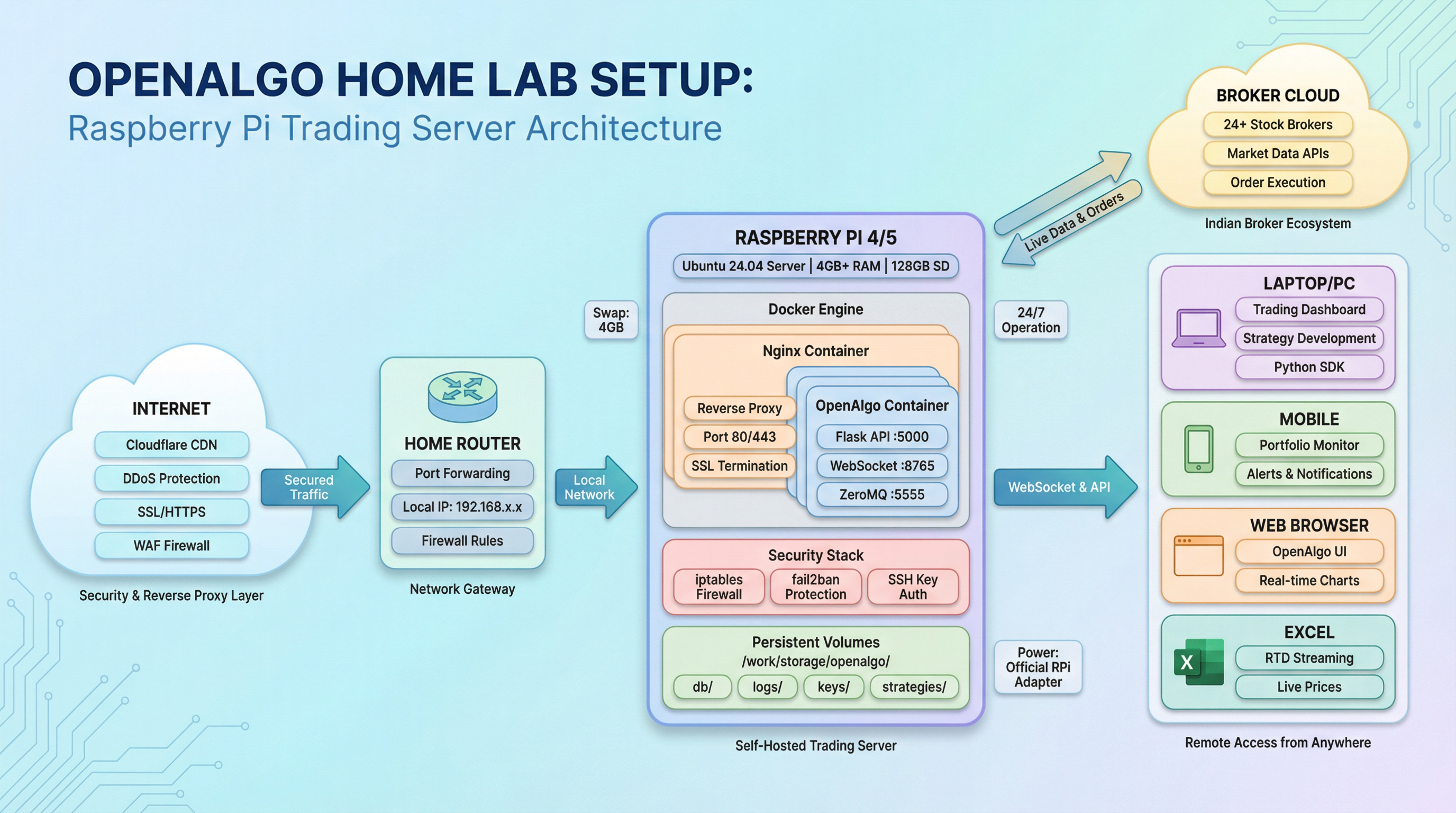
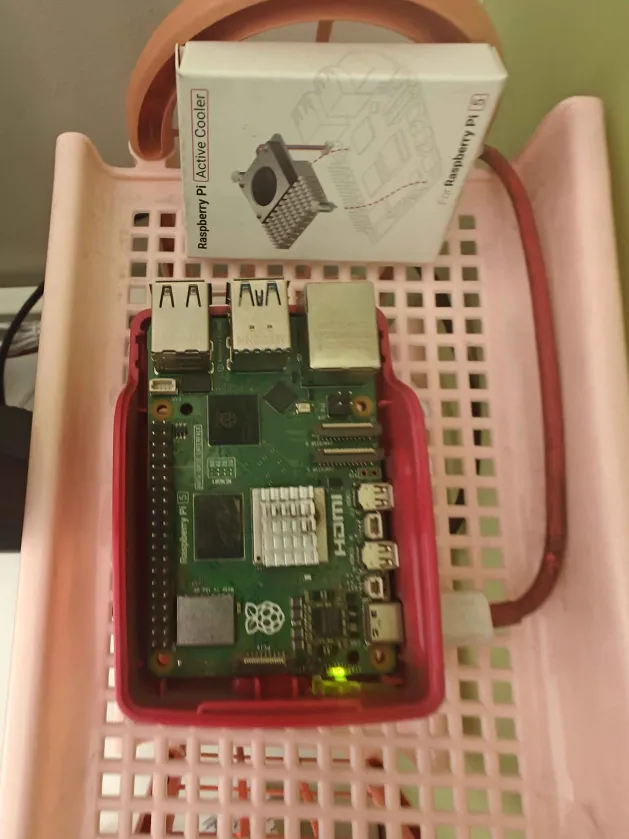
**This guide helps you install and configure OpenAlgo on Raspberry Pi models 3, 4, or 5 (4GB+ RAM), preferably running Ubuntu 24.04+ server edition.**
### Hardware & OS Recommendations
* **Raspberry Pi Model**: 3, 4, or 5 (minimum 4GB RAM)
* **SD Card**: Recommended 128GB; minimum 64GB
* **Operating System**: Ubuntu 24.04+ Server edition (preferred)
* **RPi official power adapter**: Recommended to buy for stable power supply and avoid RPi abrupt shutdowns and restarts. [Get Ubuntu images for Raspberry Pi](https://ubuntu.com/download/raspberry-pi)
### Initial System Preparation
#### 1. Flash OS to SD Card
* Use [Raspberry Pi Imager](https://www.raspberrypi.com/software/) to prepare your SD card.
* Configure initial user, password, Wi-Fi details, etc.
#### 2. First Boot & Access
* Insert SD card, power on Raspberry Pi.
* Connect HDMI to monitor/TV and USB keyboard **or** get the private IP from your router/AP and SSH to RPi instance :
```
ssh @
```
* [Official Raspberry Pi SSH guide](https://www.raspberrypi.com/documentation/computers/getting-started.html)
#### 3. Setup Swap
* Recommend swap size: **max 4GB, min 2GB**
```
sudo fallocate -l 4G /swapfile
sudo chmod 600 /swapfile
sudo mkswap /swapfile
sudo swapon /swapfile
echo '/swapfile none swap sw 0 0' | sudo tee -a /etc/fstab
```
### OpenAlgo Installation
#### Option 1: Using Official Install Script
* **Visit**: [Install Instructions](https://docs.openalgo.in/installation-guidelines/getting-started)
* **Follow the script prompts.**\
(Typically involves downloading, running the script, and entering your details.)
#### Option 2: Docker-Based Setup (Recommended for advanced users)
**1. Install Docker (Ubuntu/ARM)**
[Docker Ubuntu install guide](https://docs.docker.com/engine/install/ubuntu/)
```
sudo apt-get update
sudo apt-get install ca-certificates curl gnupg
curl -fsSL https://get.docker.com -o get-docker.sh
sudo sh get-docker.sh
```
**2. Install Docker Buildx for ARM**
`docker buildx version`
If not present, follow:
**3. Get nginx Docker Image (reverse proxy)**
`docker pull nginx:latest`
**4. Clone the OpenAlgo Repo**
```
git clone https://github.com/marketcalls/openalgo
cd openalgo
```
**5. Build OpenAlgo Docker Image**
`docker build -t openalgo:latest .`
**6. Configure Environment**
* Copy `.sample.env` as `.env` and fill in **broker API key, secret, and client ID**
```
cp .sample.env .env
vi .env
```
**7. Use docker-compose.yaml**
* Edit/verify `docker-compose.yaml` inside `/openalgo`
* If you have built the docker image in the previous step, you can comment the `build:` block and its nested keys (using #) in `docker-compose.yaml`.
* Launch services:
```
docker compose up -d
```
Use the `docker compose` subcommand (Compose v2). The standalone `docker-compose` v1 binary is end of life and is not installed by the `get-docker.sh` script above.
**8. Configure Nginx Reverse Proxy**
* Reference: [Install Multi-Script Example](https://github.com/marketcalls/openalgo/blob/main/install/install-multi.sh)
* Typical location blocks for nginx. OpenAlgo publishes **two** ports, so you need both: the Flask app on `5000` and the WebSocket proxy on `8765`. Without the `/ws` block the dashboard loads but live prices never update.
```
location = /ws {
proxy_pass http://127.0.0.1:8765;
proxy_http_version 1.1;
proxy_set_header Upgrade $http_upgrade;
proxy_set_header Connection "upgrade";
proxy_set_header Host $host;
proxy_read_timeout 86400s;
proxy_send_timeout 86400s;
proxy_buffering off;
}
location /ws/ {
proxy_pass http://127.0.0.1:8765/;
proxy_http_version 1.1;
proxy_set_header Upgrade $http_upgrade;
proxy_set_header Connection "upgrade";
proxy_set_header Host $host;
proxy_read_timeout 86400s;
proxy_send_timeout 86400s;
proxy_buffering off;
}
location /socket.io/ {
proxy_pass http://127.0.0.1:5000/socket.io/;
proxy_http_version 1.1;
proxy_set_header Upgrade $http_upgrade;
proxy_set_header Connection "upgrade";
proxy_set_header Host $host;
}
location / {
proxy_pass http://127.0.0.1:5000;
proxy_set_header Host $host;
proxy_set_header X-Real-IP $remote_addr;
proxy_set_header X-Forwarded-For $proxy_add_x_forwarded_for;
proxy_set_header X-Forwarded-Proto $scheme;
}
```
* Do not add `Upgrade` / `Connection "upgrade"` headers to the `location / {` block. Doing so sends every ordinary request upstream with a bogus upgrade header, which breaks HTTP/1.1 keep-alive to Gunicorn and shows up as intermittent failures. Only the `/ws`, `/ws/` and `/socket.io/` blocks need them.
* Then set the matching values in `.env` so the browser is told the right address, and so OpenAlgo trusts the forwarded client IP:
```dotenv
HOST_SERVER = 'https://yourdomain.com'
WEBSOCKET_URL='wss://yourdomain.com/ws'
WEBSOCKET_HOST='0.0.0.0'
TRUST_PROXY_HEADERS = 'TRUE'
```
Leave `ZMQ_HOST` on `127.0.0.1`. It is the unauthenticated internal tick bus and must never be reachable off the host.
* Adapt your domain/server settings accordingly.
### Persistent Storage (Recommended Practice)
I prefer to separate out the runtime files and folders from the github cloned folder and keep them separate. So if you build the docker image as in above step #5, you can very well take the docker-compose.yaml in a separate working folder structure and have your own versions of .env file.
* Create and mount volumes under `/work` for logs, keys, strategies, etc.
```
/work
/storage
/openalgo
docker-compose.yaml
.env
applogs/
logs/
keys/
strategies/
db/
```
* Update `docker-compose.yaml` [example](https://github.com/marketcalls/openalgo/blob/main/docker-compose.yaml). The application lives at `/app` inside the container, so the container-side path of every bind mount must start with `/app`:
```
volumes:
- /work/storage/openalgo/db:/app/db
- /work/storage/openalgo/log:/app/log
- /work/storage/openalgo/keys:/app/keys
- /work/storage/openalgo/strategies:/app/strategies
- /work/storage/openalgo/tmp:/app/tmp
- /work/storage/openalgo/.env:/app/.env
```
Mounting to `/openalgo/...` writes to a directory the application never reads, so nothing persists. The shipped `docker-compose.yaml` uses named volumes for these same five paths; replace them with bind mounts only if you want the files visible on the host filesystem.
{% hint style="warning" %}
The container runs as UID/GID 1000. Give the host directories and the `.env` file that ownership, or the first-run secret rotation cannot write and the worker restarts in a loop:
```
sudo chown -R 1000:1000 /work/storage/openalgo
sudo chmod 600 /work/storage/openalgo/.env
```
{% endhint %}
### Securing your setup
#### A. Basic Server Protection (iptables, fail2ban)
**1. Install iptables**
```
sudo apt-get update
sudo apt-get install iptables
```
* Example: Allow SSH and HTTP(S), block others:
```
sudo iptables -A INPUT -p tcp --dport 22 -j ACCEPT
sudo iptables -A INPUT -p tcp --dport 80 -j ACCEPT
sudo iptables -A INPUT -p tcp --dport 443 -j ACCEPT
sudo iptables -A INPUT -m conntrack --ctstate ESTABLISHED,RELATED -j ACCEPT
sudo iptables -A INPUT -j DROP
sudo iptables-save | sudo tee /etc/iptables/rules.v4
```
* [iptables guide](https://help.ubuntu.com/community/IptablesHowTo)
**2. Install fail2ban**
```
sudo apt-get install fail2ban
```
* Enable default jails for SSH, edit `/etc/fail2ban/jail.local` for customization.
* Start and enable service:
```
sudo systemctl enable fail2ban
sudo systemctl start fail2ban
```
* [fail2ban documentation](https://www.fail2ban.org/wiki/index.php/Main_Page)
* [Example setup](https://linuxize.com/post/how-to-install-fail2ban-on-ubuntu-20-04/)
#### B. Using Cloudflare for Reverse Proxy & Security
* **Register at** [**Cloudflare**](https://www.cloudflare.com/)**.**
* **Add Your Domain:**
* Point your domain's DNS to Cloudflare's nameservers.
* Set up [proxy status](https://developers.cloudflare.com/dns/add-domain/) for your domain so Cloudflare sits between users and your Pi.
* **HTTPS and SSL:**
* Use Cloudflare’s “Flexible SSL” or, for end-to-end encryption, generate origin certificates on Cloudflare and install them behind Nginx.
* **Firewall Rules & Monitoring:**
* Enable Cloudflare Web Application Firewall (WAF).
* Set up custom routes, rate limiting, and security rules.
* [Cloudflare dashboard security settings](https://developers.cloudflare.com/waf/)
* **Analytics & DDoS Protection:**
* Monitor connection health and traffic patterns through Cloudflare Analytics.
* [Cloudflare Nginx integration guide](https://developers.cloudflare.com/ssl/origin-configuration/ssl/nginx/)
***
### Useful References
* [OpenAlgo GitHub](https://github.com/marketcalls/openalgo)
* [OpenAlgo Documentation](https://docs.openalgo.in)
* [Docker Install Ubuntu](https://docs.docker.com/engine/install/ubuntu/)
* [Nginx Reverse Proxy Setup](https://github.com/marketcalls/openalgo/blob/main/install/install-multi.sh)
* [Persistent Volumes Example](https://github.com/marketcalls/openalgo/blob/main/docker-compose.yaml)
* [IPTables Guide](https://help.ubuntu.com/community/IptablesHowTo)
* [fail2ban documentation](https://www.fail2ban.org/wiki/index.php/Main_Page)
* [Cloudflare dashboard security settings](https://developers.cloudflare.com/waf/)
* [Cloudflare Nginx integration guide](https://developers.cloudflare.com/ssl/origin-configuration/ssl/nginx/)
**OpenAlgo is now ready on your Raspberry Pi! Start building and deploying your trading strategies.**